It is the scenario every business owner fears.
Your top sales manager, let’s call him “Mike,” walks into your office. He hands you his resignation letter. He smiles, shakes your hand, and says he is “moving on to a new opportunity.” You wish him well.
Two weeks later, you discover that “new opportunity” is your biggest competitor. And worse? Mike took your top 50 clients with him.
He didn’t break a window. He didn’t hack a firewall. He simply plugged in a USB drive—or uploaded a file to a personal Dropbox—and walked out the front door with your company’s future in his pocket.
In the cybersecurity industry, this is known as Insider Risk.
In this guide, we explain why traditional NDAs (Non-Disclosure Agreements) often fail to prevent this, and how Data Loss Prevention (DLP) technology is the only technical control that stops the “Exit Theft” before it happens.
Phase 1: The “Two-Week” Danger Zone
Research indicates that nearly 70% of intellectual property theft occurs within the 90 days prior to an employee’s resignation.
The Psychology of the “Slow Bleed” Departing employees rarely steal data maliciously. They often feel a sense of “ownership” over their work. They think, “I built this client list, so it belongs to me.”
Because they are “Trusted Insiders,” traditional firewalls do not stop them. Firewalls are designed to stop hackers from getting in, not to stop trusted data from going out.
The Method:
- The USB Drop: Copying folders to an external hard drive.
- The Cloud Bypass: Uploading files to a personal Google Drive or Dropbox.
- The Email Forward: Auto-forwarding sensitive emails to a personal address.
Phase 2: Implementing Data Loss Prevention (DLP)
You cannot physically watch every file transfer. You need an automated system to enforce your security policy. This technology is called Endpoint DLP.
1. The USB Blocker (Device Control)
Modern Endpoint Security agents (like CrowdStrike or Microsoft Defender) live on company-issued devices to monitor input/output ports.
- The Scenario: An employee plugs in an unencrypted “SanDisk” USB drive.
- The AI Response: The system recognizes the device is not on the “Approved List.” It instantly blocks the file transfer and logs the incident.
- The User Experience: The employee sees a popup: “Action Blocked: Unauthorized Storage Device. Please contact IT.”
2. The “Cloud Drop” Defense (CASB)
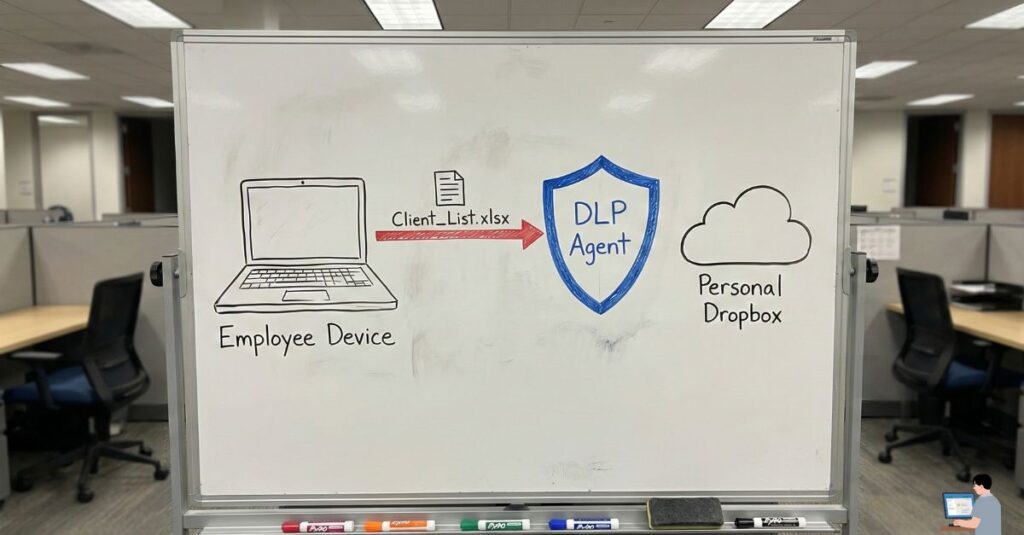
Employees often try to bypass USB blocks by using personal cloud storage.
- The Scenario: An employee logs into personal.dropbox.com on their work laptop to upload the “Q1 Sales Forecast.xlsx”.
- The AI Response: The DLP system inspects the web traffic. It sees that the destination domain is “Personal” rather than “Corporate.”
- The Rule:
- Upload to company.sharepoint.com? ALLOWED.
- Upload to personal.dropbox.com? BLOCKED.
3. Behavioral Baselines (Anomaly Detection)
Static rules are not enough. You need User and Entity Behavior Analytics (UEBA).
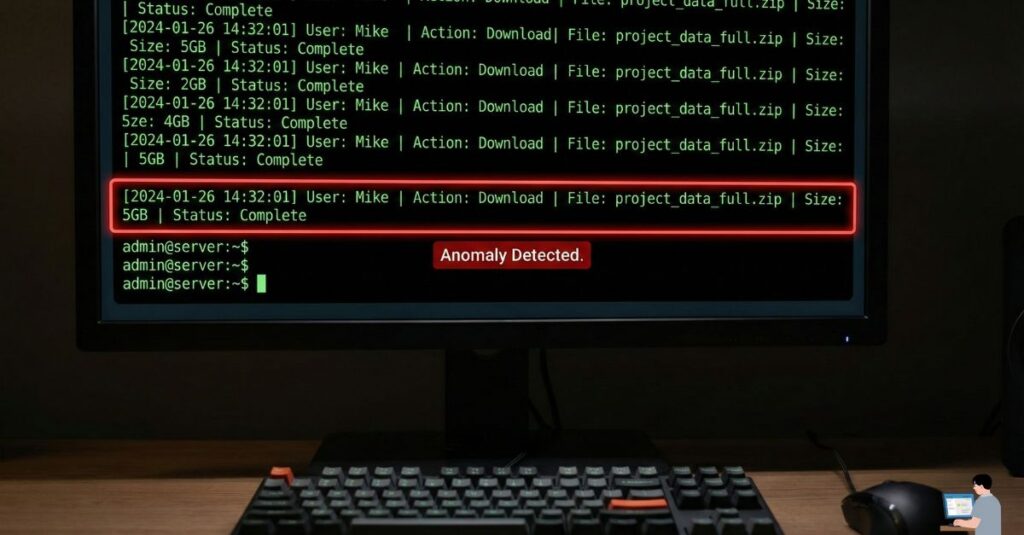
- The Baseline: The AI learns that “Mike” usually downloads 10 MB of data per day.
- The Anomaly: Suddenly, on a Tuesday, Mike downloads 5 GB of data.
- The Alert: The AI flags this “Volume Spike” as a High-Risk Exfiltration Event and alerts the Security Operations Center (SOC) immediately.
Phase 3: The “Passive Attack” (Email Forwarding)
A common, silent tactic is the Auto-Forward Rule. An employee doesn’t download files; they simply set their work email to automatically forward every incoming email to their personal Gmail.
The Fix: Configure your email server (Microsoft Exchange or Google Workspace) to disable auto-forwarding to external domains. This is a simple checkbox configuration that stops nearly 50% of data theft instantly.
Phase 4: Actionable Steps for Business Owners
Don’t wait for the resignation letter. Implement these “Zero Trust” controls today.
- Tag Your Data (Sensitivity Labels): You cannot protect what you don’t define. Use tools like Microsoft Purview to auto-tag documents with labels like “Public,” “Internal Only,” or “Strictly Confidential.”
- The “Garden Leave” Protocol: If a high-access employee resigns to join a direct competitor, it is standard practice to cut their access immediately. Pay them for their notice period, but do not allow them to log back into corporate systems.
- Remote Wipe Capabilities: Ensure your Mobile Device Management (MDM) software can remotely wipe corporate data from an employee’s phone the second they leave the building.
🎁 Bonus Guide: How to Train Your Own “Watchdog” AI
You do not always need expensive software to spot red flags. If you have access to a secure, enterprise-grade AI (like ChatGPT Enterprise or Microsoft Copilot), you can use it to audit your own logs.
⚠️ Warning: Never upload sensitive client PII (Personally Identifiable Information) into a public AI tool. Only use these prompts in a secure, compliant environment with anonymized data.
Here are 3 Power Prompts to turn your AI into a Forensic Security Analyst.
🛑 Power Prompt #1: The “Flight Risk” Detector
Goal: To analyze communication metadata for signs of a disgruntled employee planning to leave. Where to use: Paste this into your AI, followed by anonymized email subject lines or Slack public channel activity logs.
System Role: You are an Expert Human Resources Security Analyst. Task: Analyze the following communication metadata for “Disengagement Indicators.” Look For:
- Sentiment Drop: A sudden shift from positive/collaborative to negative/short responses.
- Future Distancing: Phrases indicating a lack of commitment to long-term projects (e.g., “I won’t be here for that,” “Not my problem anymore”).
- Competitor Mention: Any subtle references to competitor names or industry job fairs. Output: Flag any high-risk anomalies with a “Risk Score” (1-10) and explain why.
🕵️ Power Prompt #2: The “After-Hours” Auditor
Goal: To spot data exfiltration happening outside of business hours (a common theft tactic). Where to use: Paste anonymized file access logs (Timestamp, File Size, User ID).
System Role: You are a Tier-3 Cybersecurity Incident Responder. Task: Audit the attached log of file downloads for “Temporal Anomalies.” Analysis Rules:
- The Weekend Rule: Flag any file movement >50MB occurring between Friday 6:00 PM and Monday 6:00 AM.
- The Speed Check: Flag any user downloading more than 10 files in under 60 seconds (indicates automated scraping).
- The “Ghost” Login: Flag logins from IP addresses that do not match the employee’s usual geographic location. Output: Create a table listing “Suspicious Events” prioritized by volume of data moved.
📄 Power Prompt #3: The “Resume” Hunter
Goal: To detect if an employee is using company printers or resources to prepare for an exit. Where to use: Paste file names from print logs or recent file activity.
System Role: You are a Data Loss Prevention (DLP) Algorithm. Task: Scan the following list of filenames for “Exit Artifacts.” Keywords to Hunt: “CV,” “Resume,” “Letter of Rec,” “Portfolio,” “Client_Export,” “Contact_List,” “Handover_Doc.” Logic: If a user accesses a file named “Resume” and immediately afterwards accesses “Full_Client_List.xlsx,” flag this as a Critical Exfiltration Event. Output: Simple “SAFE” or “INVESTIGATE” status for each user ID.
Conclusion: Trust is Good, Control is Better
You aren’t implementing these rules because you distrust your employees. You are doing it to protect the business that employs them.
If one person steals your client list and damages the company’s revenue, everyone’s job is at risk. The ‘Exit Theft’ is preventable. By using DLP to watch the data—not the person—you ensure that when an employee says goodbye, they leave with nothing but their memories.