It is 2026. You walk up to a parking meter in downtown San Francisco or London. You see a QR code sticker that says “Scan to Pay.” You scan it, authorize the $5 charge via Apple Pay, and head to dinner. By the time you order dessert, your bank account has been compromised.
You didn’t scan the parking meter. You scanned a malicious sticker a scammer pasted over the real code.
This is called “Quishing” (QR Code Phishing). It is currently the fastest-growing vector for Credential Harvesting and Identity Theft in the Tier 1 market.
While traditional email firewalls are blind to these attacks, Computer Vision AI is now the primary defense standing between your mobile device and a total data breach. In this guide, we explain the mechanics of this “invisible” threat and how Next-Gen Endpoint Security is stopping it.
Phase 1: Why Legacy Firewalls Are Blind (The “Image” Gap)
Hackers are sophisticated. They know that modern Secure Email Gateways (SEGs) scan for suspicious text like “Wire Transfer” or “Urgent.”
- The Bypass: Instead of sending a text link (which gets blocked), attackers embed the malicious URL inside a QR code image.
- The Gap: To a standard legacy firewall, a QR code is just a harmless JPEG, similar to a company logo or email footer. It lets the email slip through to your inbox.
- The Danger: The attack doesn’t happen on your secured corporate laptop. You pull out your personal smartphone (which often lacks Enterprise Mobility Management software) to scan the code, bypassing all corporate security layers.
Phase 2: How AI “Sees” the Trap (Computer Vision Defense)
Modern Phishing Protection Platforms (like Abnormal Security or Ironscales) utilize Computer Vision and Optical Character Recognition (OCR) to detect these threats before they reach you.
1. The Visual Decode
The AI doesn’t just read the email text; it “looks” at the images.
- Detection: It identifies the distinct square matrix pattern of a QR code within an image attachment.
- Extraction: It decodes the URL hidden inside (e.g., www.secure-login-fake.com) without a human ever clicking it.
- Sandboxing: It opens that link in a safe, isolated virtual environment. If the page requests Microsoft 365 credentials or attempts a drive-by download, the email is quarantined immediately.
2. The Contextual Analysis
AI understands behavior. If you receive an email from “IT Support” asking you to scan a code to update your 2-Factor Authentication (2FA), the AI checks the sender’s origin.
- The Flag: If the email originated from a personal Gmail address rather than the official corporate domain, the Behavioral Analysis engine flags it as a “Domain Mismatch” and blocks the attack.
Phase 3: The 3 Most Common ‘Quishing’ Scams
1. The “Parking Meter” Overlay (Physical)
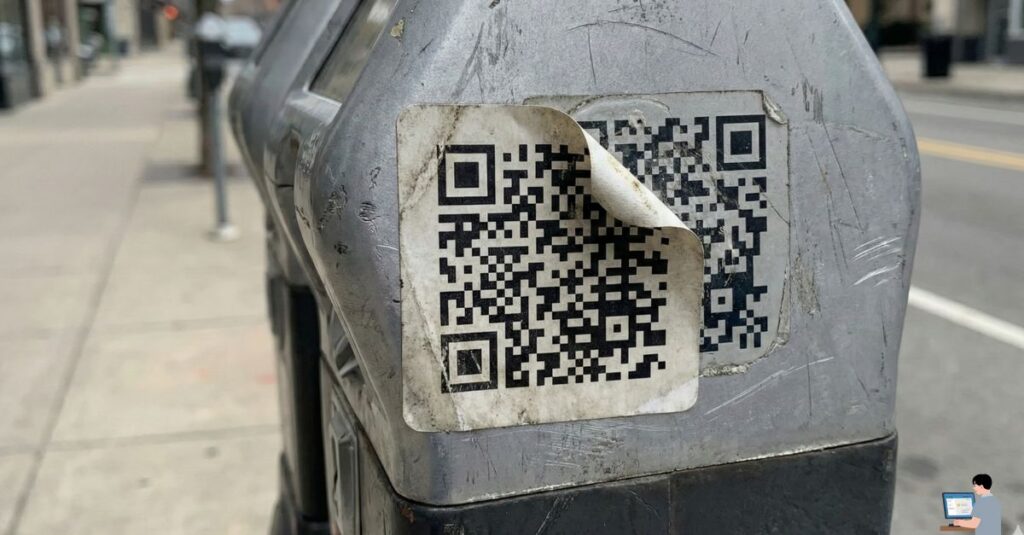
The Scam: Scammers paste high-quality stickers over official QR codes on parking meters, EV charging stations, or restaurant menus. The Defense: Perform a “Tactile Check.” Run your finger over the code. If it feels like a sticker raised above the surface, or if the corners are peeling, do not scan it. Use the official parking app instead.
2. The “Device Linking” Trick
The Scam: You receive a message on WhatsApp or Discord: “Scan this code to link your account to a new device.” The Defense: Zero Trust Rule. Never scan a code sent to you. Only scan codes generated by your own trusted screen to login. If you scan a code sent by a stranger, you are effectively handing them the “Session Token” to your account.
3. The “Missed Delivery” Slip
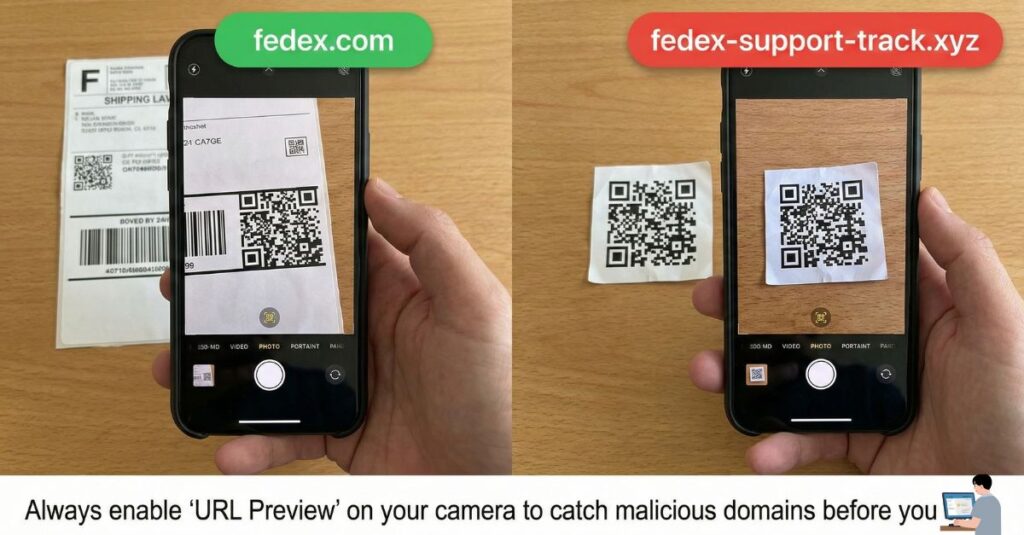
The Scam: You find a physical slip in your mailbox: “We missed your FedEx package. Scan here to reschedule.” The Defense: Use a QR Scanner with URL Preview. Most modern iOS and Android cameras show a preview of the domain (e.g., fedex.com) before you tap. If the URL looks like fedex-track-support.xyz, it is a phishing site.
Phase 4: Incident Response (I Scanned It. Now What?)
If you scanned a code and suspect it was malicious, you must act within minutes to prevent Data Exfiltration.
1. Airplane Mode IMMEDIATELY Sever the connection to the hacker’s command-and-control server. This prevents them from downloading Spyware or remote access tools (RATs) to your device.
2. Revoke Sessions If you scanned a code related to a social or messaging app:
- Go to Settings > Linked Devices.
- Select “Log Out All Other Sessions.” This kicks the hacker off your account instantly.
3. Rotate Credentials If you visited a “Bank” or “Login” page via that QR code, assume your keystrokes were logged. Use a different, uncompromised device to change your passwords and enable Biometric Authentication.
Phase 5: Expert FAQ
Q: Is there a safe QR scanner app?
A: Do not download random “QR Scanner” apps from the app store. Many are “Fleeceware” (apps that charge high subscriptions for basic features) or contain adware. The Solution: Use the native camera on iOS or Google Lens on Android. These have built-in security filters powered by Google’s Safe Browsing API.
Q: Can a QR code hack my phone just by scanning it?
A: Generally, no. Scanning the code usually just opens a browser. The danger is what you do next (downloading a file or entering a password). However, keeping your iOS/Android OS updated is critical to patch any “Zero-Click” vulnerabilities.
Q: How do I report a fake parking code?
A: Scrape it off immediately to protect others, then report the location to the city or the parking vendor (e.g., PayByPhone or RingGo).